A time tracker that turns into invoices
Start the timer when you begin and stop it when you finish. The hours wait under the right project until you bill them, and there is nothing to set up first.
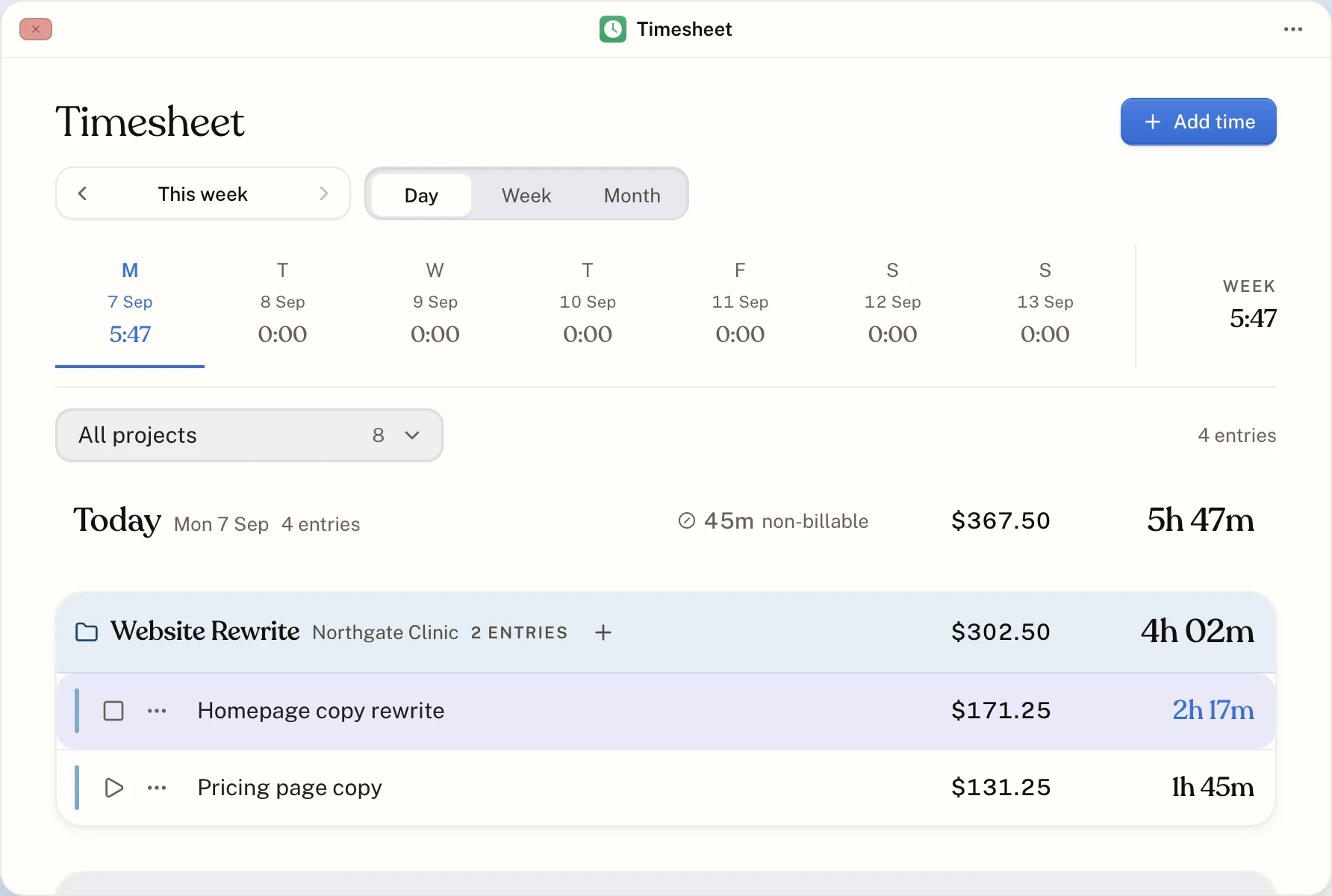
One timer, one click
Start it from the desk, the timer widget or the Chrome extension. Starting a new task stops the one that was running, so no hour is counted twice.
Pick up where you were
Press play on an entry from today and it carries on. Press play on one from another day and a fresh entry starts today with the same description.
Add time by hand
Forgot the timer? Type the length as 1:30, 1h 30m or 1.5, choose the date and project, and it files a finished entry.
Day, week and month
The day grouped by project, the week as a grid with totals on both edges, and the month as a calendar of the days you worked.
Billable or not
Each entry is billable or non-billable, and the day shows both. Choose in Settings which one new entries start as.
Rounding, if you want it
Turn on rounding and the desk timer rounds to 15 minutes when it stops. Time you type yourself is never rounded.
The same timer in Chrome and on your Mac
In your toolbar
Start, stop and add time from any tab. The icon shows the running time, and Alt + Shift + T toggles the timer. It works in Chrome, Edge and Brave.

In your menu bar
The running time sits next to your clock. Click it for the week, start or stop, and add time. Right-click lists today's projects. It connects from your desk with one click, no password.
 1:24
1:24Time stays on the day you did the work
Every entry has a date. Add Tuesday's hours on Thursday and they stay on Tuesday: in the timesheet, in the week's totals and on the invoice line.
Built around hourly billing
The timer tracks against hourly projects, because those are the ones billed by the hour. A fixed-price project is invoiced by amount, so it stays out of the timer's list and never collects hours it cannot bill.
Always in view
The timer widget sits on the desk with the running clock and a stop button. The Overview shows today and this week, and how this week compares with the last one up to the same day. In Chrome the toolbar icon shows the running time, and on a Mac the menu bar does.
About time tracking
Can I run two timers at once?
No. One timer runs at a time across your account. Starting a new one stops the old one and keeps its time.
What if I forget to start the timer?
Add the time afterwards. Open Add time, type how long you worked, pick the date and the project, and the entry is filed as if you had timed it.
Can I track time without opening the desk?
Yes. The Chrome extension runs the same timer from your toolbar, and the Mac app runs it from your menu bar.
Start with the timer. The invoice follows.
Make an account, start the clock, and send your first invoice when the work is done. No card, and nothing to upgrade to later.